 OPEN
OPENThe workspace
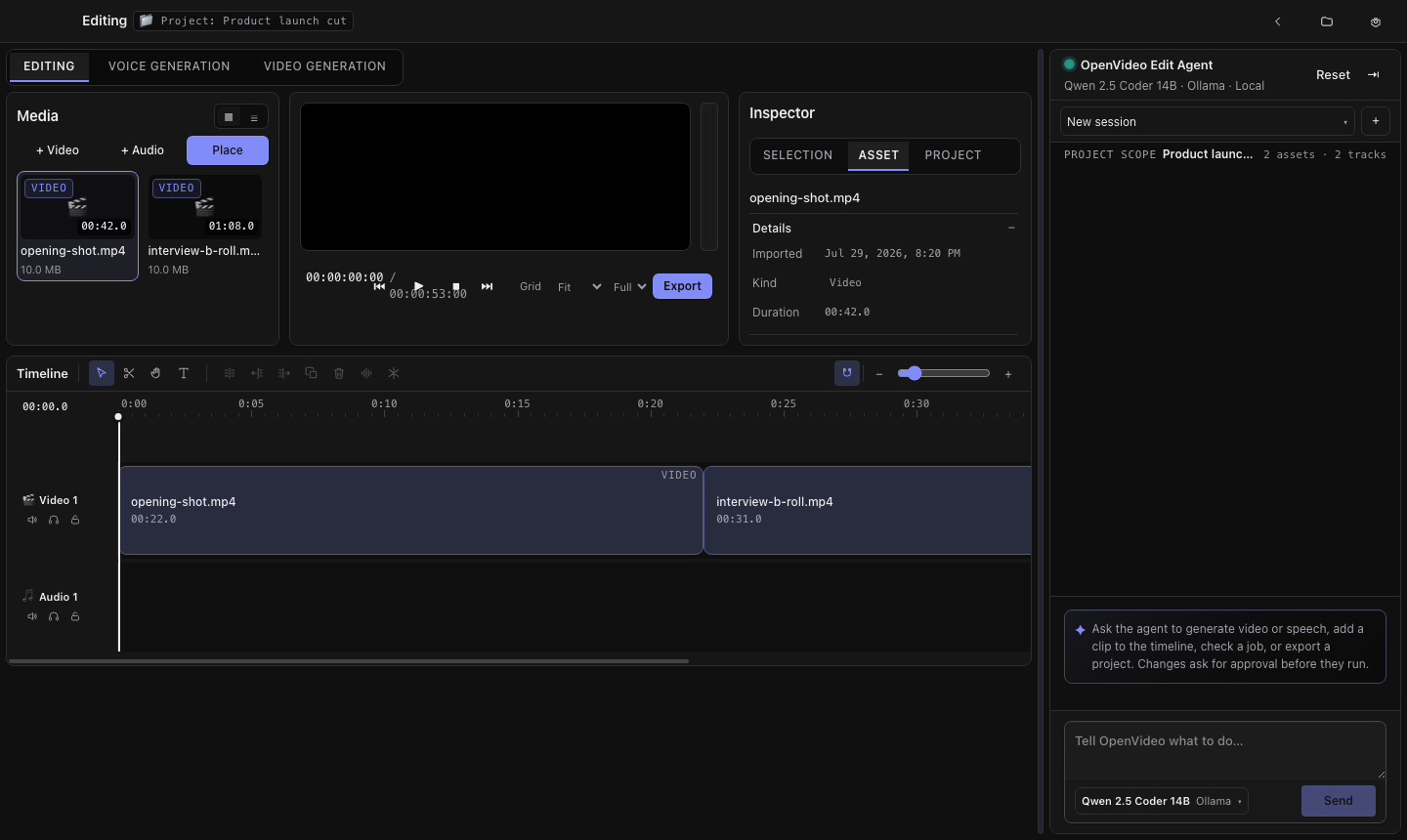
A tour of the editing surface: media dock, Program Monitor, inspector, timeline, and the docked agent chat.
Opening a project lands you in the workspace. One tab strip switches between editing and the two generation studios, and the agent chat stays docked beside all three.
The regions
| Region | What it does |
|---|---|
| Project and media dock | Lists the project's imported assets and lets you drag them onto tracks |
| Program Monitor | Plays the timeline for review. Best-effort — the FFmpeg export is the authoritative output |
| Inspector | Edits the selected clip: opacity, scale, position, rotation, volume, keyframes, and transitions |
| Timeline | Video and audio tracks, playhead, per-track audio mix |
| Edit Agent | The chat panel that can operate all of the above. See The Edit Agent |
Layout control
The left dock and the inspector can each be collapsed to give the timeline more room, and the layout can be reset to its default. All three are bound to keys by default — ⌘1, ⌘2, and ⌘0 — and can be remapped in Settings.
Switching studios
The tab strip moves between the editor, voice generation, and video generation. The agent chat does not reset when you switch, so a conversation can span editing and generation in the same session.